
As a clinician, a patient family member or caregiver, you may be invited to join a patient consultation.
It is recommended to have a 'SK Virtual Visit' Account for a better virtual visit experience with a patient, however it is not needed to join them as a guest in their virtual consultation.
In order for you to join, the patient must share your email with the healthcare provider. To prepare, it is best that you ensure they have your email prior to them starting their consultation. Once they have entered their consultation, they can message their healthcare provider in the chat, asking them to invite you as a participant on their behalf.
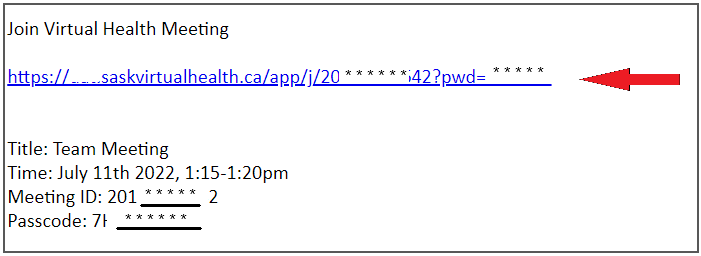
You will receive an invitation email with information to join the consultation.
There are two ways to join:
Option 1: From the URL link provided in the invitation email
Option 2: From the 'SK Virtual Visit' system 'Log-In' screen (account not required, however must use web on computer/laptop or app installed on mobile device)
Option 1: From the URL Link Within the Invitation Email
Step 1: Click the invitation hyperlink provided in the email.
If the hyperlink does not work, highlight the hyperlink information by moving your mouse cursor over it and clicking the left mouse button once (the entire line should be highlighted), then:
- Copy it to your clipboard. Press Ctrl+C (Windows) or Command+C (Mac) or right-click on your mouse and choose 'Copy'.
- Open your web browser and paste the hyperlink info into it. Click into the address line, press Ctrl+V (Windows) or Command+V (Mac) or right-click on your mouse and choose 'Paste'.
Step 2 -The Meeting ID and Passcode will automatically generate onto the 'Join a Meeting' screen.
- Add your name to help identify yourself
- Enable your microphone and camera, then click to remember these settings for future meetings
- It is recommended that you test your audio and video equipment prior to joining the meeting by clicking ‘Test Audio and Video’. The test takes approximately 30 seconds and will let them know the quality of their audio and video.
- After the test, click 'Join Meeting'.
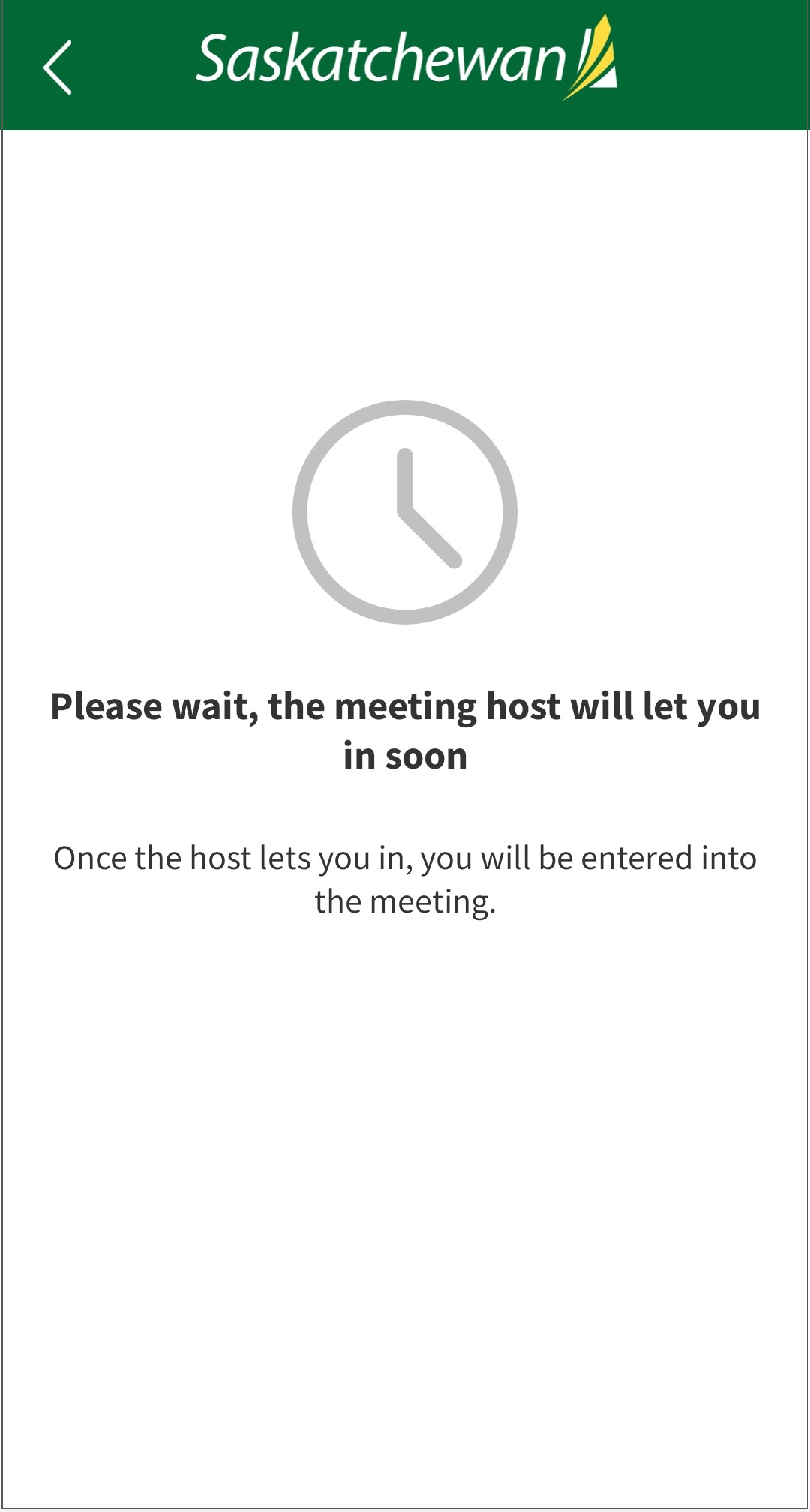
Step 3 -Wait for the meeting host to 'Admit' you into the meeting.
Users on Mobile Device:
Web on Computer/Laptop:

As a security measure, the healthcare provider must allow you entry into the video chat. If allowed entry, you will be directed into the video. If declined entry, you will be prompted and unable to enter the video.

If you drop from the meeting, you may re-enter it (remember, you only have 3 attempts) and as long as the meeting host remains in the meeting and it is still active.
Option 2: From the 'Log-In' Screen - No Account
Step 1 - The “SK Virtual Visit” app will have to be downloaded onto your mobile device:
- iOS for Apple mobile cell phone and iPad products - Apple App Store
- Android mobile products - Google Play Store

OR
Go to https://virtualvisit.saskatchewan.ca/on your computer or laptop.
Step 2 -On the 'Log In' screen, do not log in. Click 'Join Meeting'
Step 3 -
- Manually enter the 'Meeting ID' and 'Passcode' given in the email.
- Add your name to help identify yourself
- Enable your microphone and camera, then click to remember these settings for future meetings
- It is recommended that you test your audio and video equipment prior to joining the meeting by clicking ‘Test Audio and Video’. The test takes approximately 30 seconds and will let them know the quality of their audio and video.
- After the test, click 'Join'.
Step 4 - Wait for the meeting host to 'Admit' you into the meeting.
As a security measure, the healthcare provider must allow you entry into the video chat. If allowed entry, you will be directed into the video. If declined entry, you will be prompted and unable to enter the video.
If you drop from the meeting, you may re-enter it (remember, you only have 3 attempts) and as long as the meeting host remains in the meeting and it is still active.
How to Join a Meeting Using Your Desktop or Laptop Computer:
How To Join a Meeting Using Your Mobile Device:
Comments
0 comments
Article is closed for comments.